
Your browser keeps copies of pages to load them faster. When those copies go stale, sites misbehave. Clearing the cache forces Chrome to fetch everything fresh.
On desktop (Windows, Mac, Linux)
- Press Ctrl + Shift + Delete on Windows/Linux, or Cmd + Shift + Delete on Mac. A “Delete browsing data” window opens.
- Set the time range to All time.
- Tick Cached images and files. Leave “Passwords” unticked — you don’t need to lose those.
- If you’re stuck in a login loop, also tick Cookies and other site data (this signs you out of most sites).
- Click Delete data (labelled Delete from this device in newer versions).
- Close and reopen Chrome, then reload the page you were having trouble with.
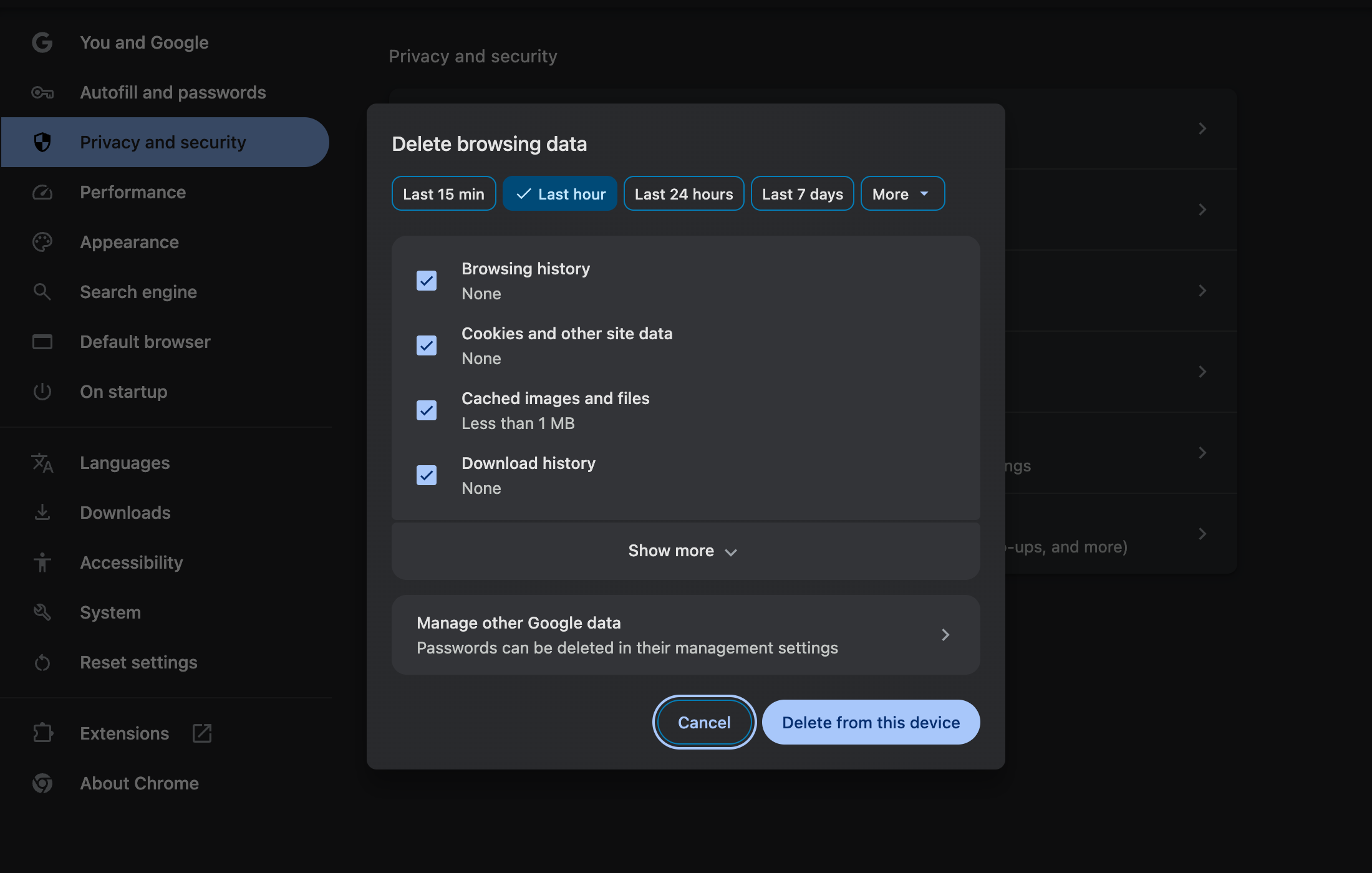
Tip: You can also get there through the menu: ⋮ (three dots) → Delete browsing data.
On iPhone / Android
- Open the Chrome app and tap the ⋮ (three dots) menu.
- Tap Delete browsing data.
- Set the time range to All time, tick Cached images and files, and confirm.
- Fully close the Chrome app and reopen it.
Just this one site acting up?
You don’t have to nuke everything:
- Open the problem site in Chrome on desktop.
- Click the icon to the left of the web address (a padlock or sliders icon).
- Choose Site settings → Delete data.
- Reload the page.