
Safari stores site data a little differently on Mac versus iPhone/iPad — pick your device below.
On Mac
- Open Safari and click Safari → Settings in the menu bar (top-left of the screen).
- Go to the Privacy tab.
- Click Manage Website Data….
- To fix one site, search for it, select it, and click Remove. To start clean, click Remove All.
- Click Done, then quit Safari (Cmd + Q) and reopen it.
Note: “Remove All” signs you out of most websites. Your passwords stay saved.
On iPhone / iPad
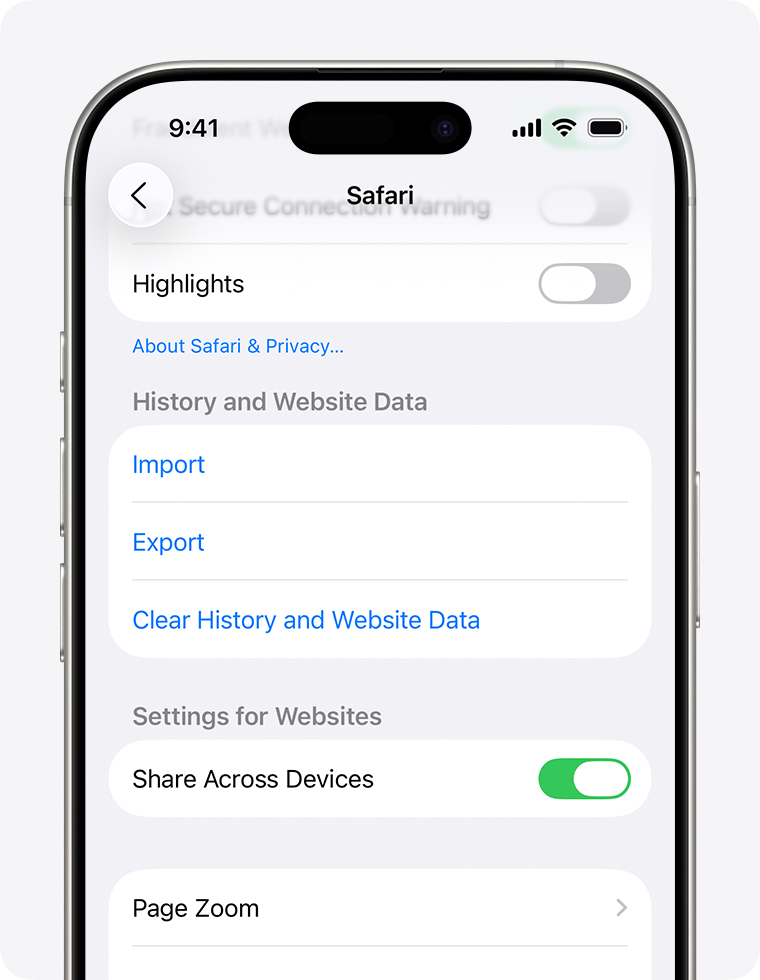
- Open the Settings app (not Safari itself).
- Scroll down and tap Apps → Safari (on older iOS versions, just Safari).
- Tap Clear History and Website Data.
- Choose All history and confirm.
- Reopen Safari and try the site again.
Clear only the cache, keep your history (Mac)
- In Safari, open Safari → Settings → Advanced.
- Tick Show features for web developers at the bottom.
- A Develop menu appears in the menu bar. Click Develop → Empty Caches.
- Reload the page with Cmd + R.